
Set up payment deadlines
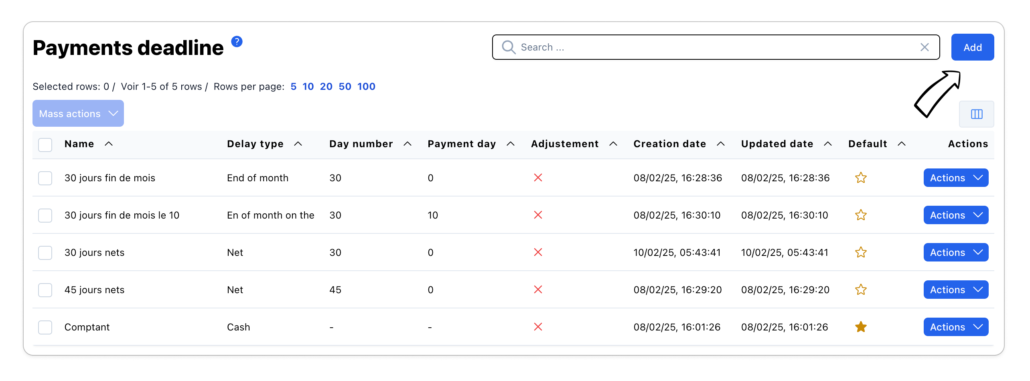
The payment deadline enables you to apply an automatic calculation rule based on the parameters defined for your payment deadlines on your purchase and sales documents.
Add a payment deadline
From the list of payment deadlines, click on the ‘Add’ button, then define the parameters for the payment deadline.
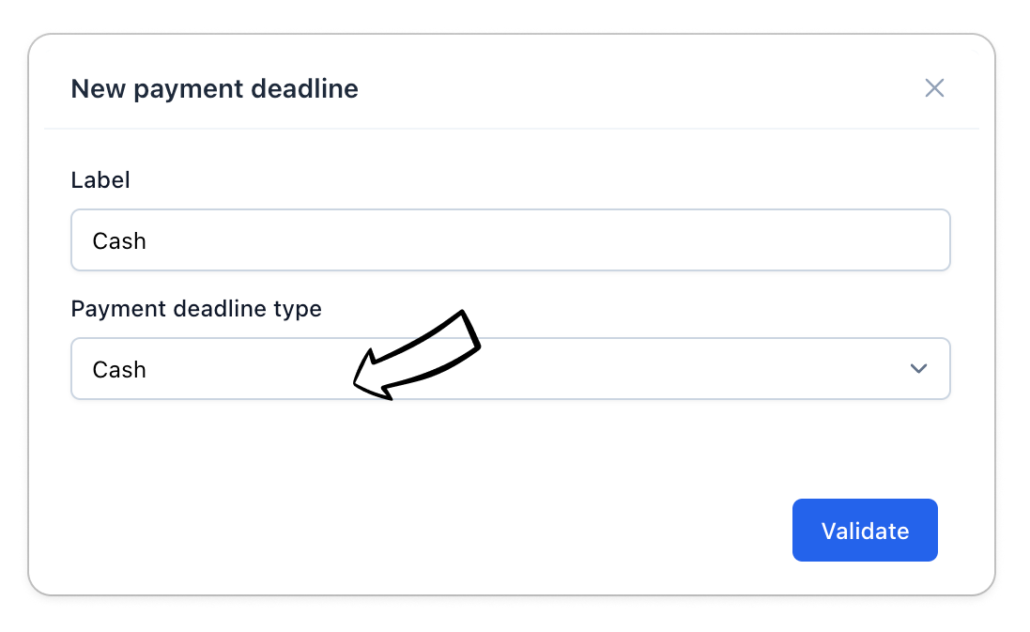
- Cash: your document is due for payment on the date it is finalised.
For example: If your document is finalised on 01/01, your due date will be 01/01.
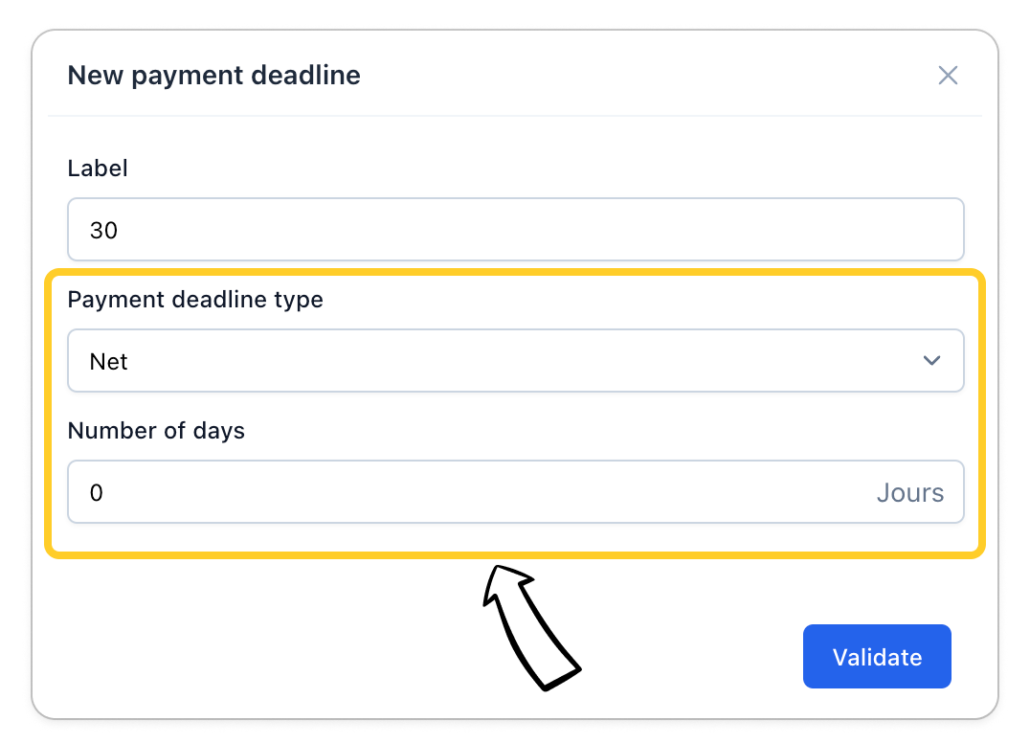
- Net: Apply a number of days to calculate the expiry date of your document. The due date will then be X days from the date of the finalised purchase or sale document.
For example: Number of days: 30. If your document is dated 01/01, your due date will be 01/30.
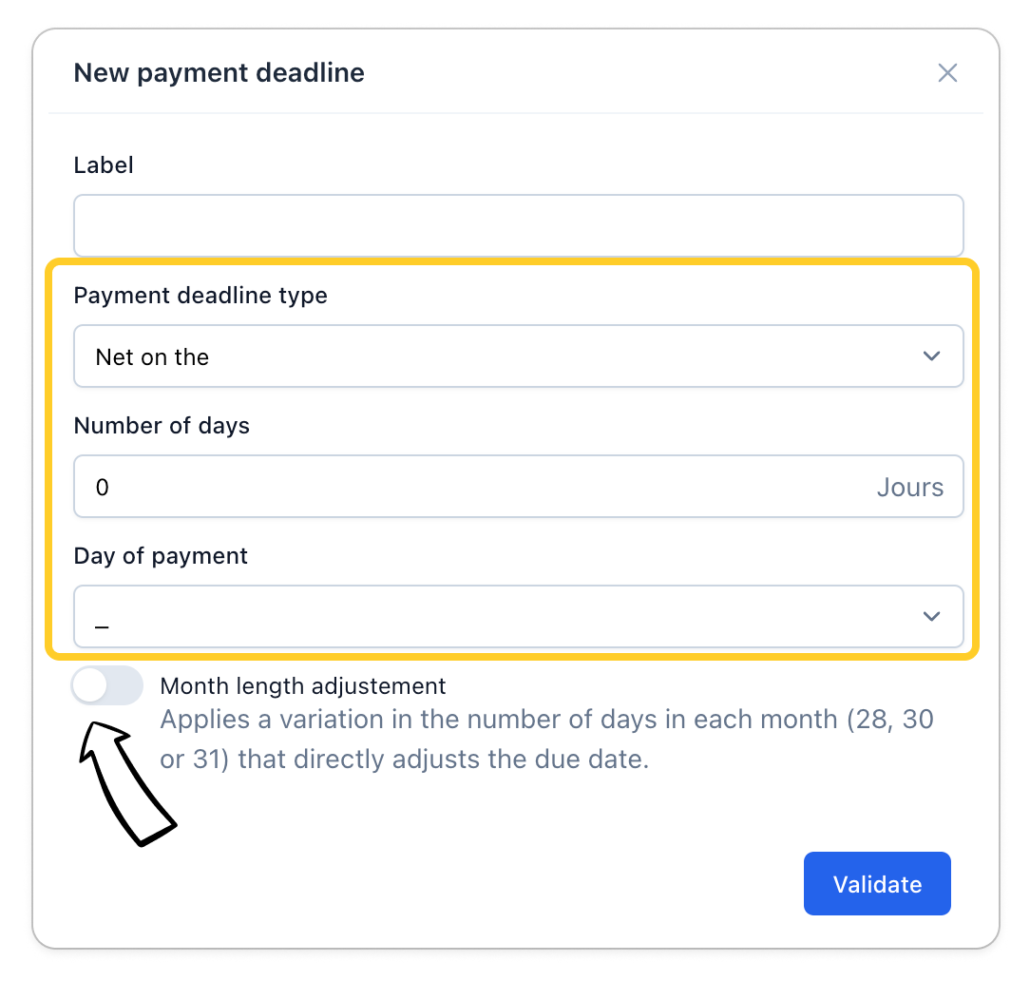
- Net on : Apply a number of days and then a fixed day to calculate the expiry date of your document. The expiry date will then be increased to X days and then brought back to the next cut-off day of the date of the finalised purchase or sale document.
For example: Number of days: 30, day on: 1. If your document is dated 01/01, your due date will be 02/01 (1+30 > pushed back to 02/01).
The Month length adjustement to the number of calendar days in each month’ function is used to readjust the calculation of the due date according to the number of days in each month.
If this function is not activated, the calculation of the ‘number of days’ remains strictly based on the number of days defined.
- End of month: Apply a number of days to calculate the due date of your document, which will automatically be extended to the last day of the following month. The due date will then be extended to X days from the date of the finalised purchase or sale document, and then to the last day of the following month.
For example: Number of days: 30, end of month. If your document is dated 01/01, your due date will be 01/31 (1+30 > postponed to the end of the month, i.e. 01/31).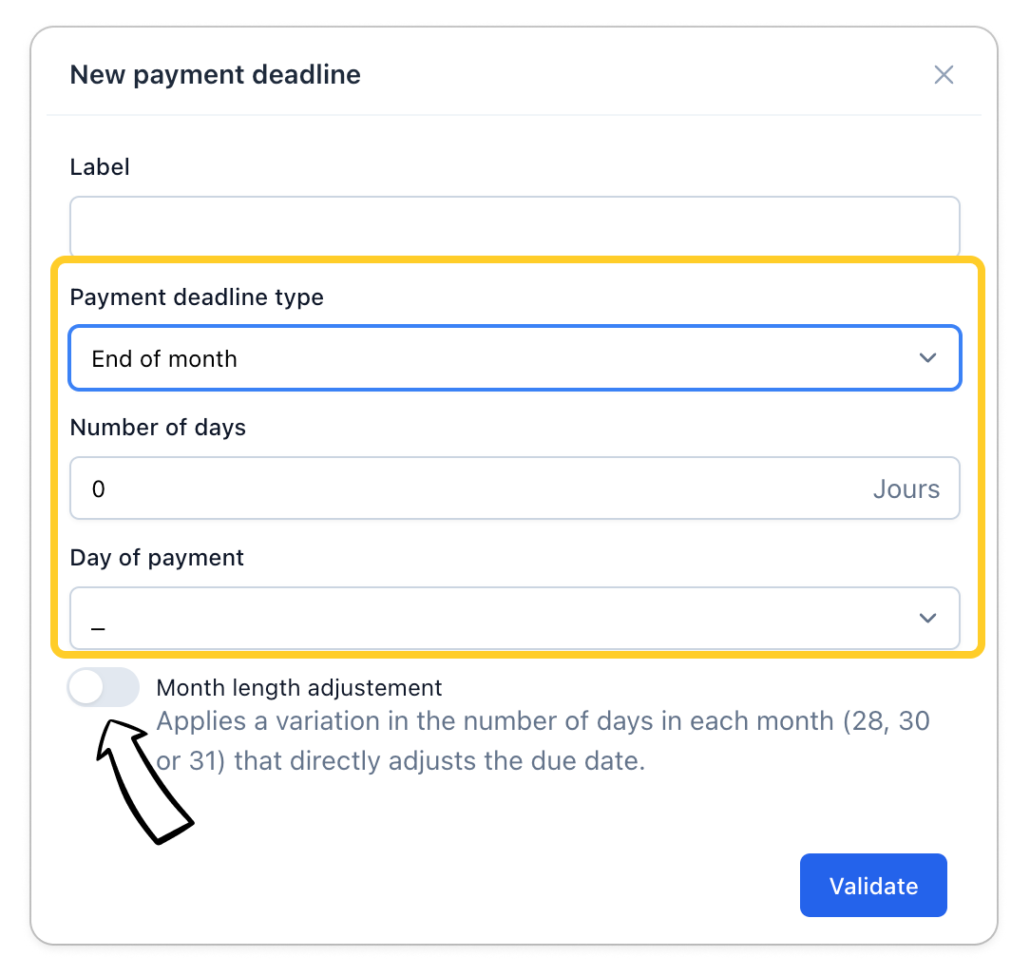
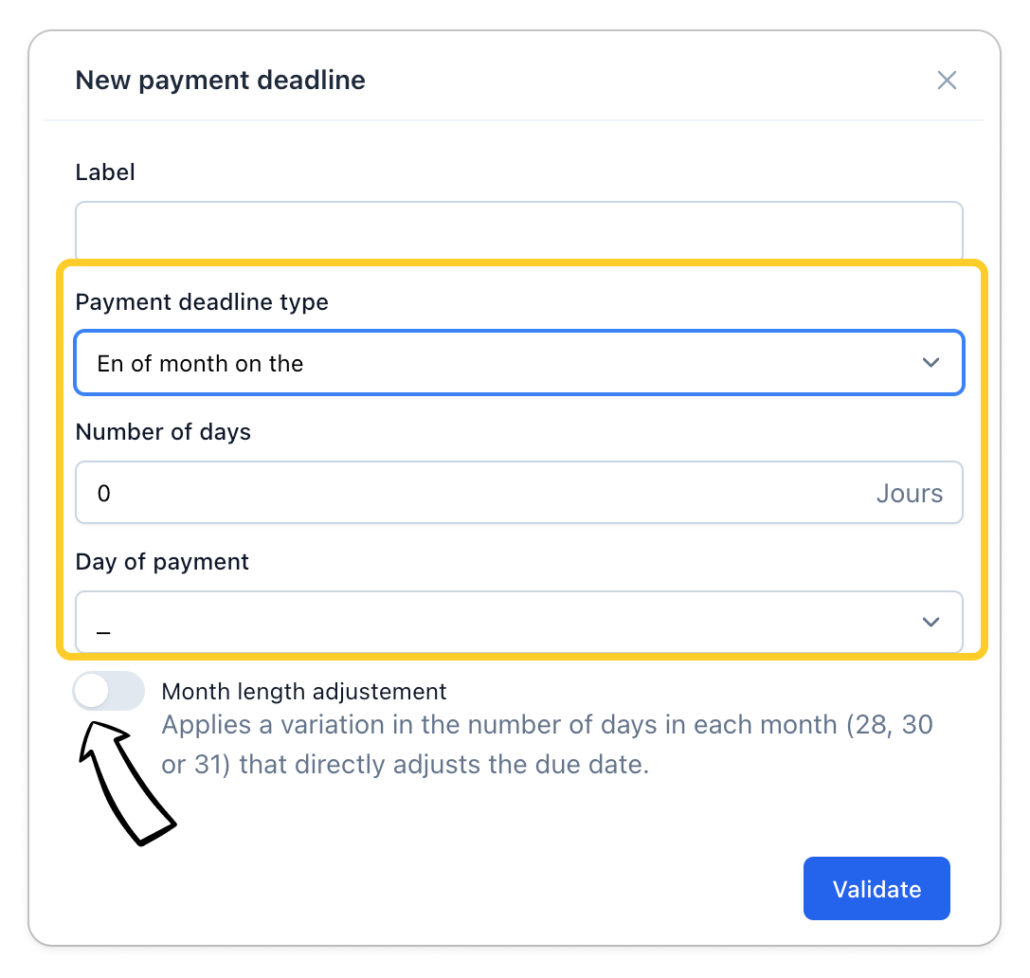
- End of month on the : Apply a number of days to calculate the due date of your document, which will automatically be extended to the last day of the following month and then postponed to the end of the month in question. The due date will then be extended to X days from the date of the finalised purchase or sale document, extended to the last day of the following month and then pushed back to the specified day.
For example: Number of days: 30, end of month on 10. If your document is dated 01/01, your due date will be 02/10 (1+30 > pushed back to the end of the month, then carried forward to the first 10th of the following month, i.e. 02/10).
Set your default settlement date
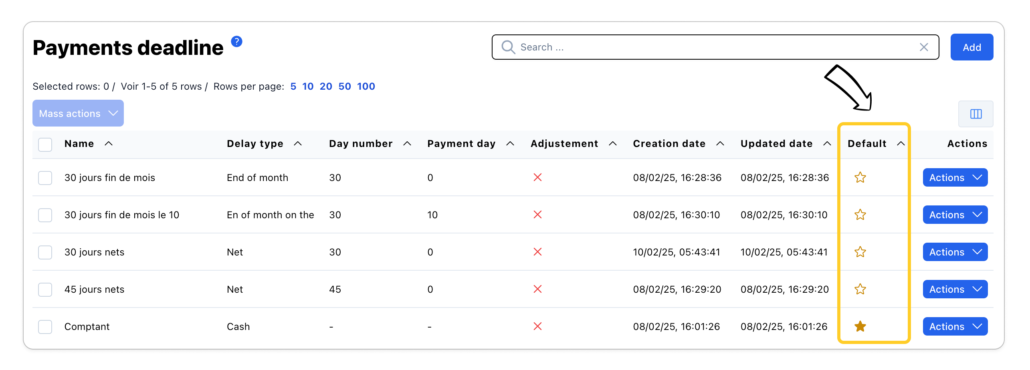
The default payment term is symbolised by the gold star. Once you have defined your default payment term, it will be proposed on your purchase and sales documents, unless you have applied a specific payment term to a customer or supplier.
Modifying a payment deadline
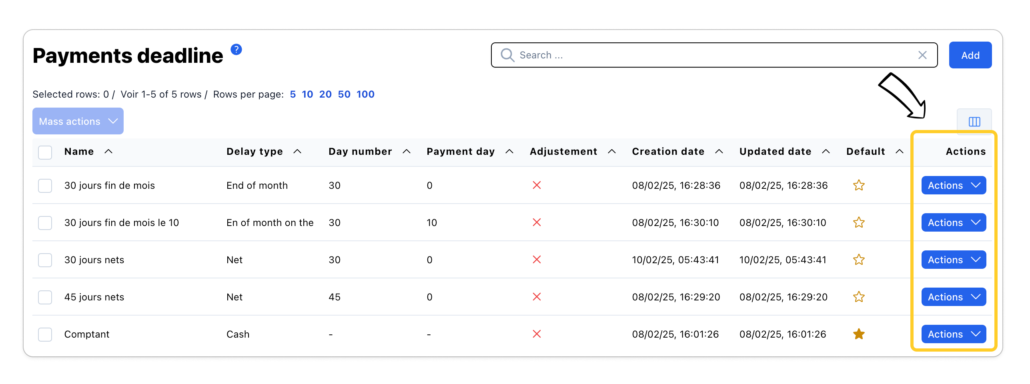
Click on the ‘Actions’ > ‘Edit’ button from the desired payment deadline line. You can make the change and then click on ‘Save’.
Delete a payment deadline
Select the desired payment deadlines, then click on ‘Mass actions’ > ‘Delete’.
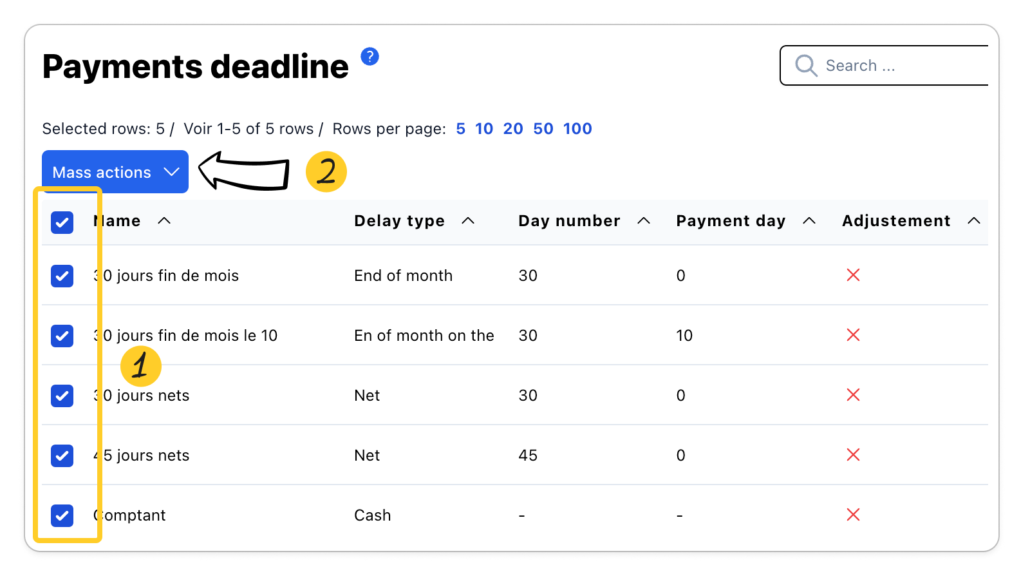
The default payment deadline cannot be deleted. You must first define another default settlement period.
Displaying and organising columns
Customise the list of payment deadlines using the available columns.
- Click on the ‘Column management’ button
- Click on the ‘Eye’ button to show or hide the desired columns
- Organise the order of the columns by positioning your mouse cursor on the ‘3 rows’ icon
- Click on reset to return to the default view
Mass actions
Mass actions can be taken from the currency list:
- Delete
- Export the list in CSV, Excel or PDF format
Select the desired items and click on ‘Mass actions’. The mass action will be performed on the selected lines only.

