
Setting pricings
Define different prices according to your customer segmentation. Once you’ve created your tariffs, you can customise them from the item files, and choose the tariff to apply to your customers, from a customer family, from a customer file or from a sales document.
Each tariff can be set to suit your needs. You can define :
- Whether prices should be displayed exclusive of VAT or inclusive of VAT on sales documents
- The tariff currency
- Define the currency
- Define the price construction method (either as a % of the purchase price or by sales coefficient) for general sales
- Define the price construction method (either as a % of the purchase price or by sales coefficient) on sales from markets
- Manually, the selling price of the item will be applied to each price list from the item master record.
If the price is configured as an automatic calculation method based on the purchase price (by % of the price or by coefficient), it cannot be modified in the item master record or be the subject of a price import.
Different types of pricing
You can determine 3 methods of behaviour for your prices:
- Price per product: The price is defined directly on the item master record.
- Percentage added to the purchase price: The selling price of the price list is calculated automatically based on the default supplier purchase price defined in the item master record.
- For example, for a purchase price of 100 with a percentage applied of 10%, the selling price calculated will be 110.
- Coefficient applied to the purchase price: The selling price of the price list is calculated automatically based on the default supplier purchase price defined in the item master record.
- For example, if the purchase price is 100 and a coefficient of 1.2 is applied, the calculated selling price will be 120.
With the ‘Percentage added to purchase price’ and ‘Coefficient applied to purchase price’ methods, the selling price cannot be modified manually from the item master record except in the case of quantity discounts or net prices by quantity.
Add a price
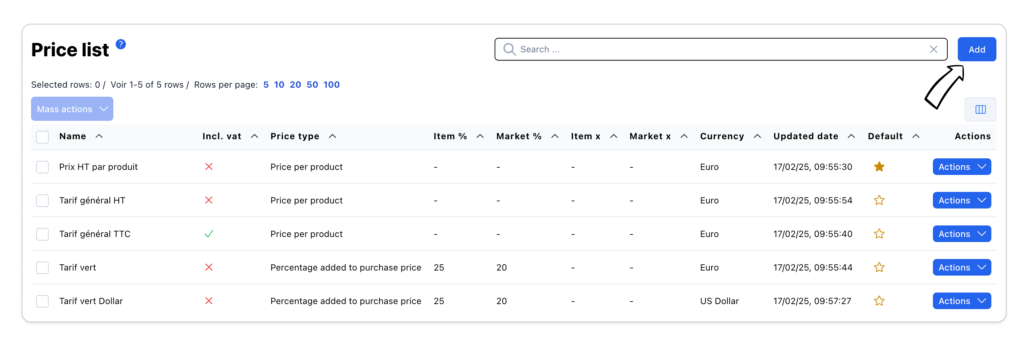
Depuis la liste des tarifs cliquez sur le bouton “Ajouter”, puis appliquer les informations souhaitées
- Renseigner le libellé du tarif
- Choisir si le tarif est exprimé en HT ou TTC
- Choisir la méthode de calcul du tarif
- Choisir la devise de référence du tarif parmi les devises activées (depuis Paramétrages > Données > Devises)
- Renseigner les pourcentages ou coefficient si votre tarif n’est pas configuré en “Prix par produit”
From the list of tariffs, click on the ‘Add’ button, then apply the required information
- Enter the name of the tariff
- Choose whether the price is expressed exclusive of tax or inclusive of tax
- Choose the tariff calculation method
- Choose the reference currency for the tariff from the activated currencies (from Settings > Data > Currencies)
- Enter the percentages or coefficients if your price is not configured as a ‘Price per product’.
Define your default pricing
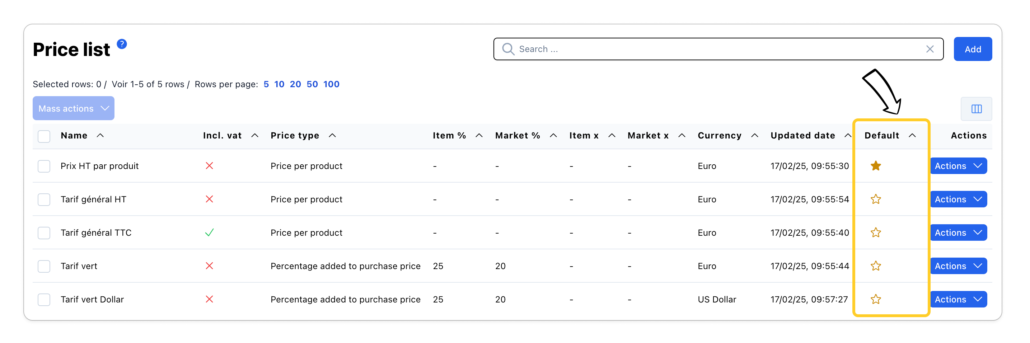
The default pricing is symbolised by the gold star. Once you have defined your default rate, it will be displayed first on the customer files unless you have applied a specific rate to the customer family.
Modifying a pricing
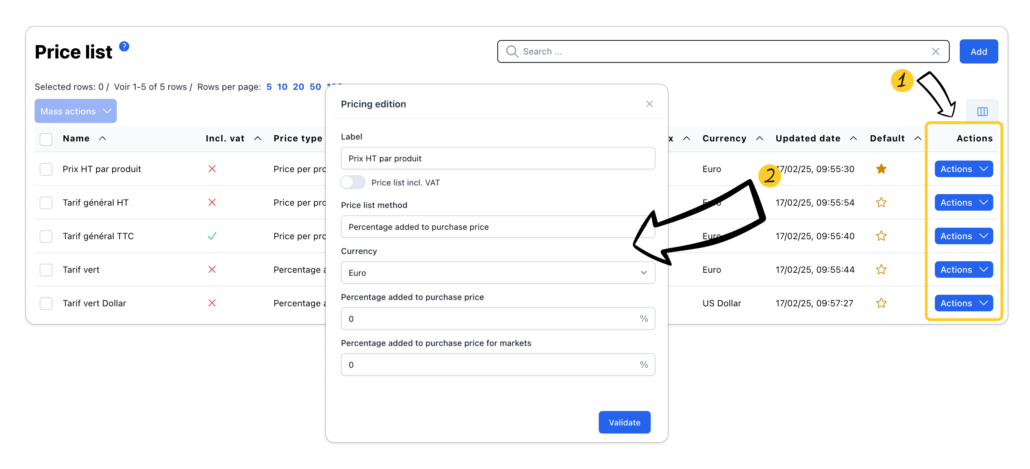
Click on ‘Actions’ > ‘Edit’. You can make the changes and then confirm them.
Once you have validated the changes to the price list, the change will be applied to all the sales prices for this price list on each item record.
Delete a pricing
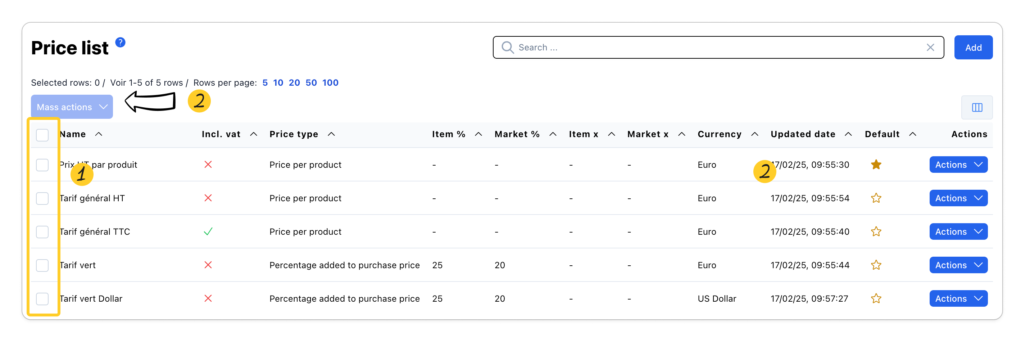
Select the tariff line(s) to be deleted, then click on ‘Mass actions’ > ‘Delete’.
Certain prices cannot be deleted
- The ‘system’ prices (General price excluding VAT and General price including VAT) can be renamed but not deleted.
- The default price. Select another default price to delete the desired price.
Mass actions
Des actions en masse sont possibles depuis la liste des tarifs :
- Export de la liste aux formats CSV, Excel ou PDF
- Suppression en masse
Sélectionner les éléments souhaités puis cliquer sur « Actions en masse ». L’action en masse s’effectuera sur les lignes sélectionnées uniquement.
Mass actions can be taken from the price list:
- Export the list in CSV, Excel or PDF format
- Mass deletion
Select the items you want to delete, then click on ‘Mass actions’. Mass deletion will be performed on the selected lines only.
Displaying and organising columns
Customise the display of the list with the available columns.
- Click on the ‘Column organisation’ button
- Click on the ‘Eye’ button to show or hide the desired columns
- Organise the order of the columns by positioning your mouse cursor on the ‘3 rows’ icon
- Click on reset to return to the default view
Apply a price to a customer family or a customer
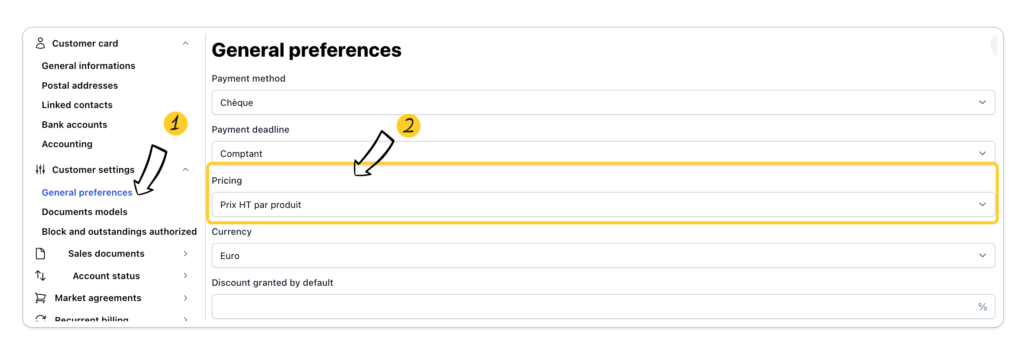
From the customer file, the default rate is applied, either the rate from the customer family or the default rate. You can apply another rate using the ‘Rate’ selector.
- From a customer family
- From a customer record
Modifying the price from an item record
From the product file, in the ‘Sales price’ card, select the desired pricing to access or modify its sales price(s) according to its pricing (single price, net price per quantity or quantity discounts).
Modifying the pricing from a sales document
As long as your sales document has not been finalised, you can change the price to be applied to the sales lines taken from the item catalogue of a sales document. From the action banner on the left, select the required pricing.
Import prices
If your tariffs are managed manually, you can import prices or update them.

