Configure sales units
Configure your sales units to apply to your items. This allows you to define whether you want to sell your items by unit, piece, liter, kilo, etc.
Please note, the sales unit is not a package. Indeed, packaging generally makes it possible to sell in batches, in cardboard packs, in boxes, while maintaining the unit price of the item.
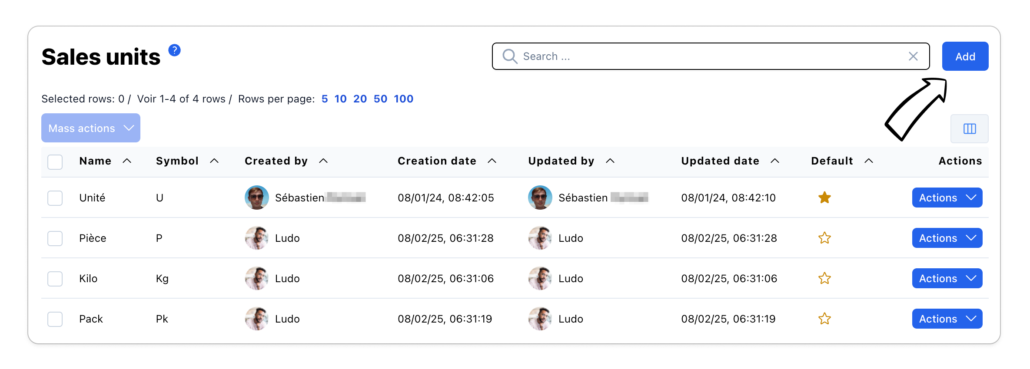
Add a sales unit
From the list of sales units, click on the “Add” button, then enter the name and symbol of your sales unit
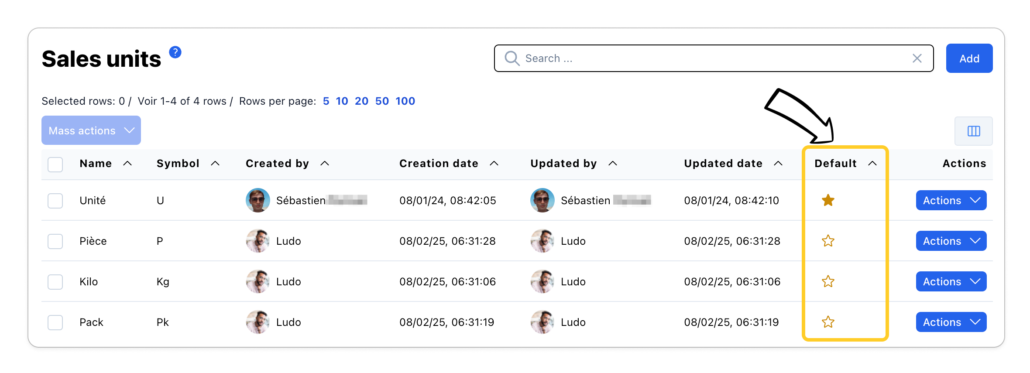
Set your default sales unit
The default sales unit is symbolized by the gold star. Once you have defined your default unit, it will be proposed on your item sheets, and displayed on your purchasing and sales documents.
When applying simple lines (purchase or sales lines not coming from the item catalog) to your purchase and sales documents, the default sales unit will be used.
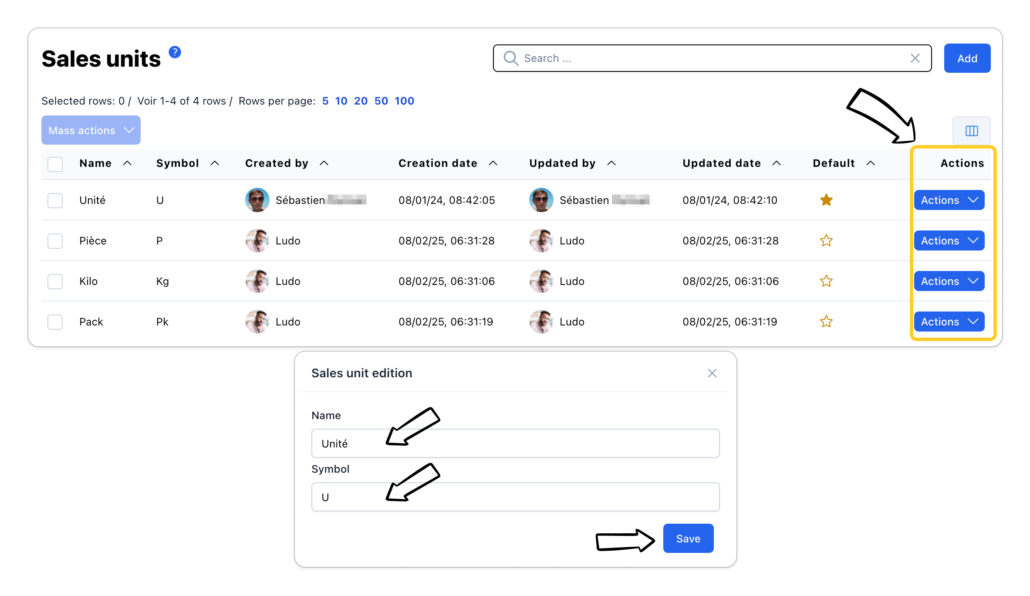
Edit a sales unit
Click on the line of the desired sales unit with your finger or mouse, the modification window opens. You can make the modification then validate.
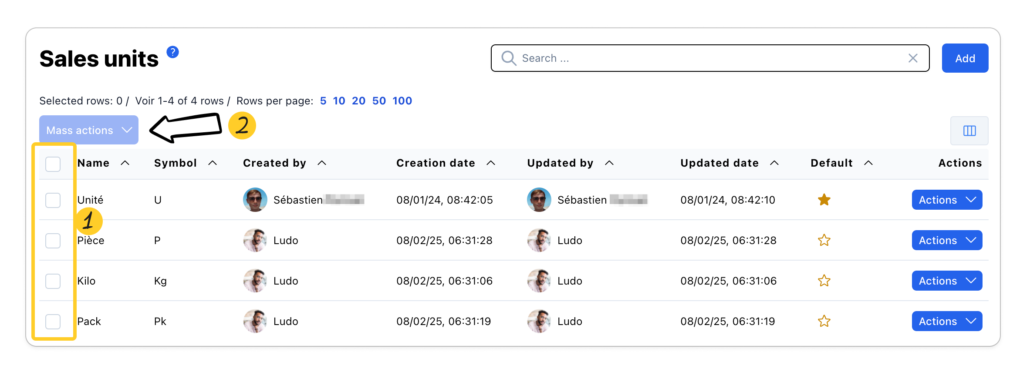
Mass actions
Mass actions are possible from the list of sales units:
- Export of the list of sales units in CSV, Excel or PDF formats
- Mass removal of units
Select the desired elements then click on “Mass Actions”. The bulk action will be performed on selected rows only.
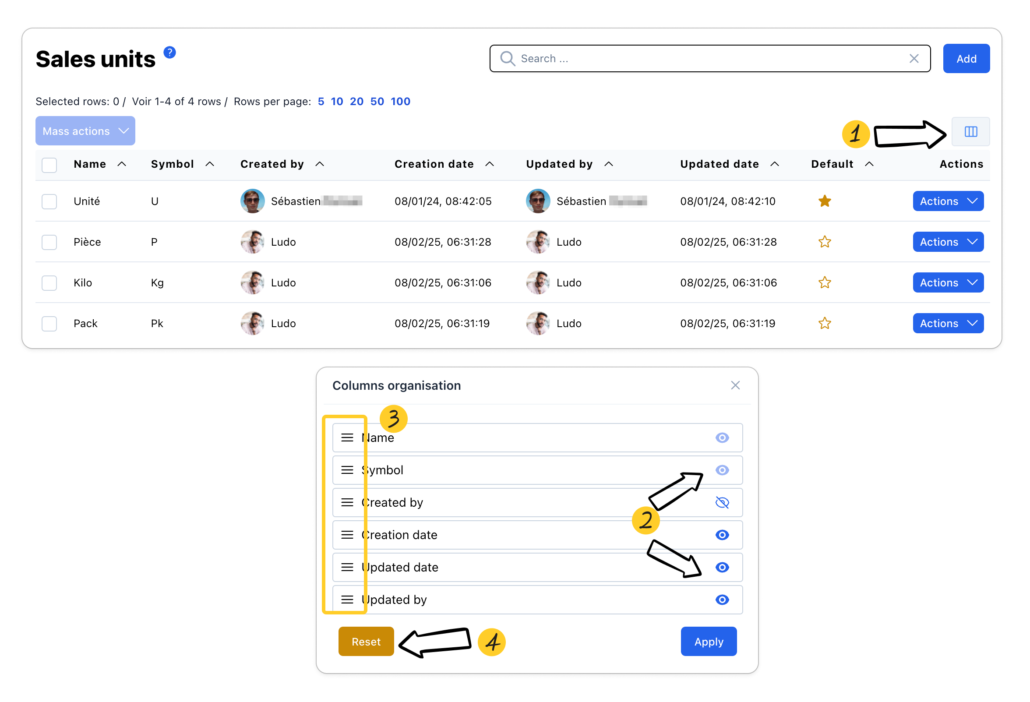
Organizing the columns
Customize the sales units list with the available columns.
- Click on the “Column management” button
- Click on the “Eye” button to show or hide the desired columns
- Organize the order of the columns by positioning your mouse cursor on the “3 lines” icon
- Click on reset to return to the default display