
Configure currencies and conversion rates
Configure the currencies and currency conversion rates used for your billing.
Définition
This feature allows you to define your default currency used on your Gesti’up account and to activate the currencies to be used when issuing invoices to customers.
Regulatory framework
If you wish to invoice in foreign currency, you must comply with several legal and tax obligations defined by the French administration. Gest’iup allows you to respect these obligations.Une facture émise en devise étrangère doit contenir les éléments suivants :
1. Mandatory information on the invoice
- The total amount in foreign currency (e.g. USD, GBP, CHF, etc.).
- The indication of the currency must be clearly mentioned.
- The total amount in euros (€), converted according to the latest exchange rate published by the European Central Bank (ECB) or a recognized market rate
- VAT amounts in euros, if VAT is applicable.
2. Conversion and exchange rates
- The company must use an official exchange rate when issuing the invoice.
- In general, the chancery rate published by the DGFiP or the rate of the Banque de France can be used for the conversion.
- It is recommended to specify on the invoice the source of the exchange rate applied (e.g.: ECB rate of [date]).
3. VAT and tax
- VAT invoiced in euros: VAT, if applicable, must always be indicated in euros.
- Territoriality rules: It is necessary to check whether the transaction is subject to French VAT or whether it falls under a reverse charge regime (case of intra-EU services, exports outside the EU, etc.).
- Accounting declaration: The invoice must be recorded in accounting with an equivalent in euros if your accounting is in Euros.
4. Accounting for invoices in foreign currency
- The accounting entry must be recorded in euros in the accounting books.
- Exchange differences (gains or losses) must be recorded in specific accounts (account 656 – Exchange losses or 756 – Exchange gains).
- If a payment is subsequently received with a different exchange rate, an accounting adjustment must be made.
5. Tax declarations and specific obligations
- VAT declaration (CA3/CA12): If the transaction is subject to VAT, it must be declared in euros.
- Declaration of international operations: Certain transactions must be declared in the summary statement of exchanges of goods (DEB) or services (DES).
- Tax payment: All tax obligations (VAT, corporate tax) remain in euros, even if invoicing is made in foreign currency.
Official source: : article 289 of the CGI
Set the default currency for your Gesti’up account
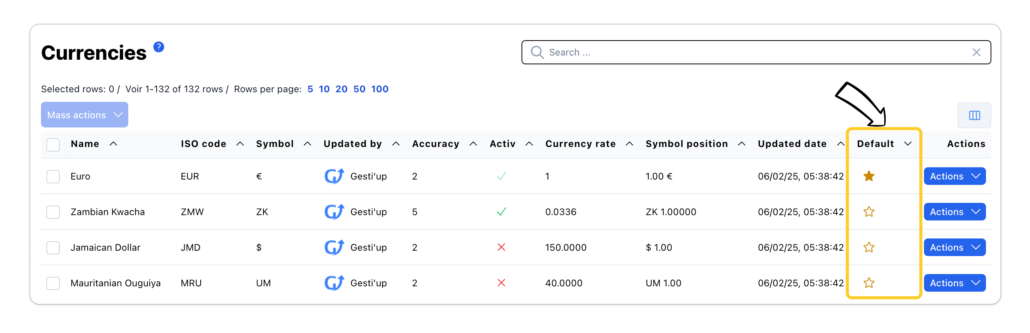
From the list of currencies, click on the star to set the default currency.
All monetary and accounting information in your account will then be in this currency.
You can personalize:
- The currency symbol
- The position of the currency (To the right or left of the amount)
Activate currencies
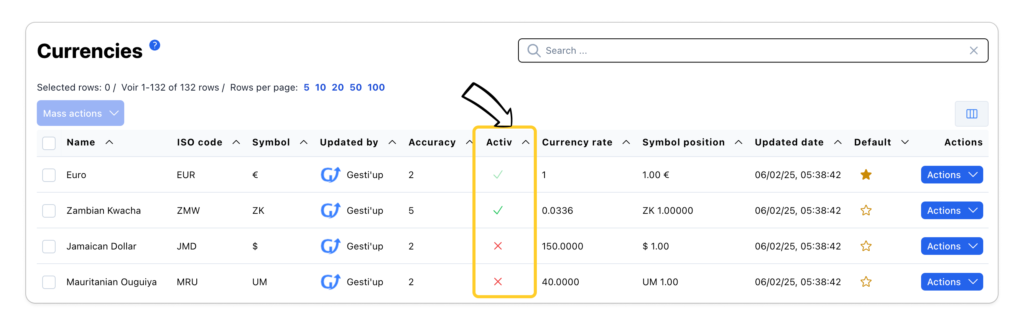
Gesti’up offers the official list of currencies recognized by the tax administration to be used for invoicing.
To make it available from a customer family, customer file or sales or purchase document, here are the actions to perform:
- First method from a currency line, click on the cross, in the “Active” column, and on the check mark to deactivate the currency
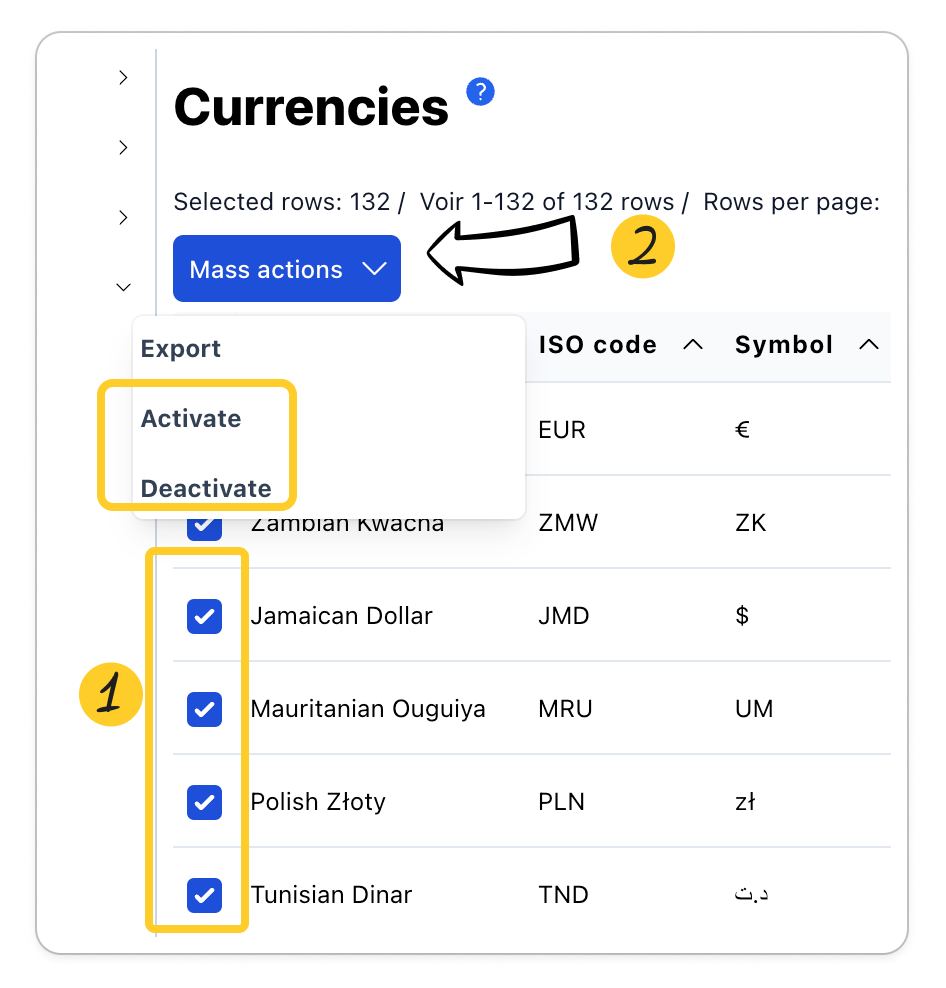
- Second method, by mass actions:
- Click on the desired currency lines
- Click on the “Mass Actions” button then choose “Activate” or “Deactivate”
Change Currency Currency Symbol
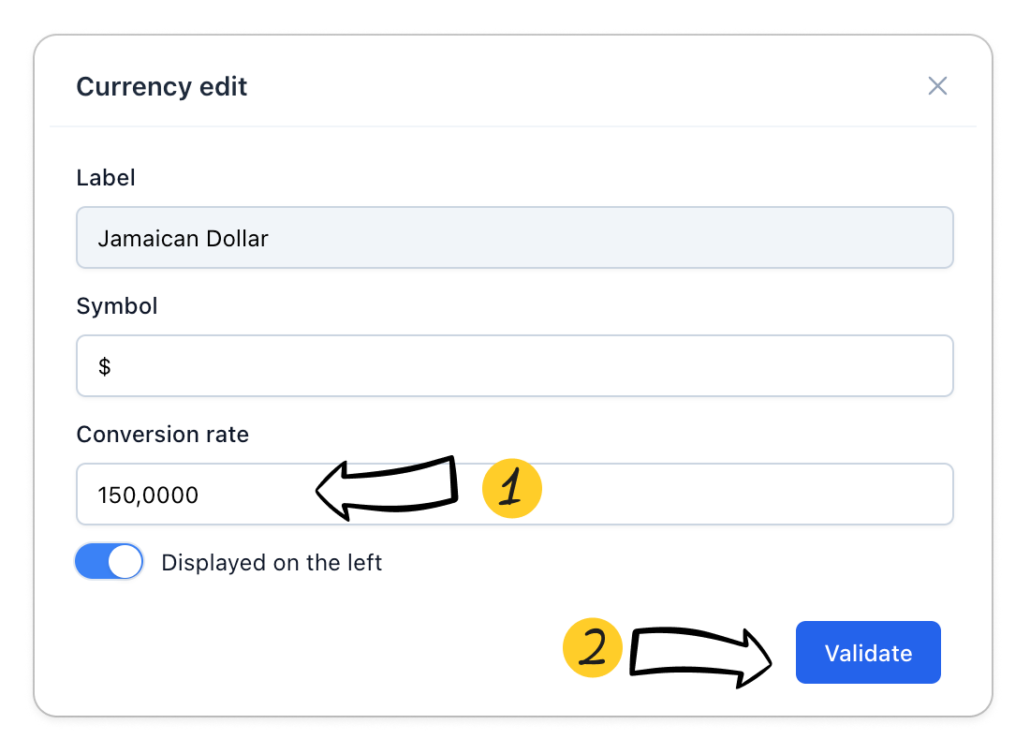
Gesti’up offers you a currency symbol which is included on the sales or purchase documents, you can personalize it if necessary:
- From the currency line click on “Actions” > “Edit”
- Change the currency symbol, then “Validate”
Change the exchange or conversion rate
Customize the currency list with available columns.
The exchange or conversion rate for each currency will be calculated based on your default currency (which will then always be “1”)
For example :
If your default currency is the euro and you wish to apply a conversion rate for the currency “Dollar USD”, then enter 1.10 on the currency “Dollar USD”
| CURRENCY | ISO CODE | CONVERSION RATE (EXAMPLE) |
|---|---|---|
| US Dollar | USD | 1 EUR = 1.10 USD |
| British Pound | GBP | 1 EUR = 0.85 GBP |
| Japanese Yen | JPY | 1 EUR = 130 JPY |
| Swiss Franc | CHF | 1 EUR = 0.98 CHF |
| Canadian Dollar | CAD | 1 EUR = 1.45 CAD |
| Chinese Yuan | CNY | 1 EUR = 7.80 CNY |
You have the possibility to apply the desired conversion rate or to apply the latest exchange rate of the currency in force, through a native connection with the Bank of France by activating the automatic updating of exchange rates.
- From the currency line click on “Actions” > “Edit”
- Change the currency conversion rate, then “Validate”
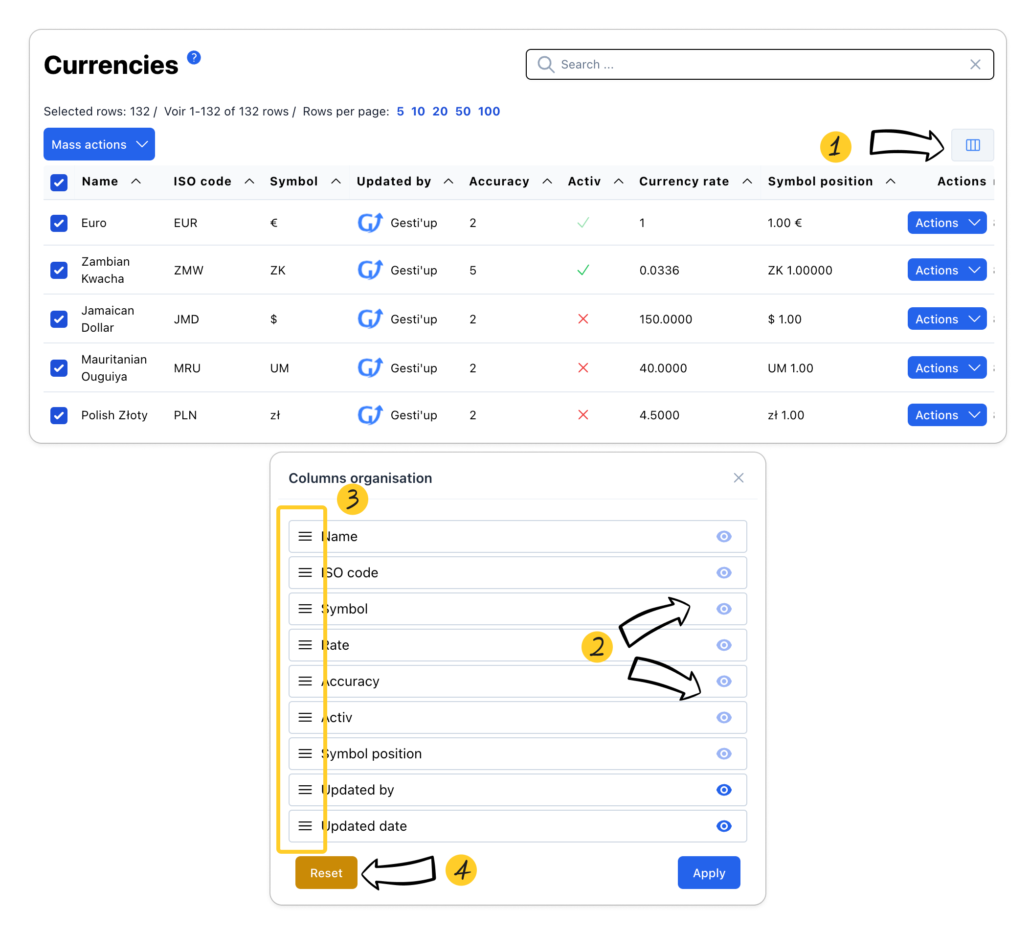
Displaying and organizing columns
Customize the currency list with the available columns.
- Click on the “Column management” button
- Click on the “Eye” button to show or hide the desired columns
- Organize the order of the columns by positioning your mouse cursor on the “3 lines” icon
- Click on reset to return to the default display
Mass actions
Mass actions are possible from the list of currencies:
- Enabling and disabling selected currencies
- Export the list to CSV, Excel or PDF formats
Select the desired elements then click on “Mass Actions”. The bulk action will be performed on selected rows only.

