
Invoicing settings
Set your default invoicing preferences on your Gesti’up account.
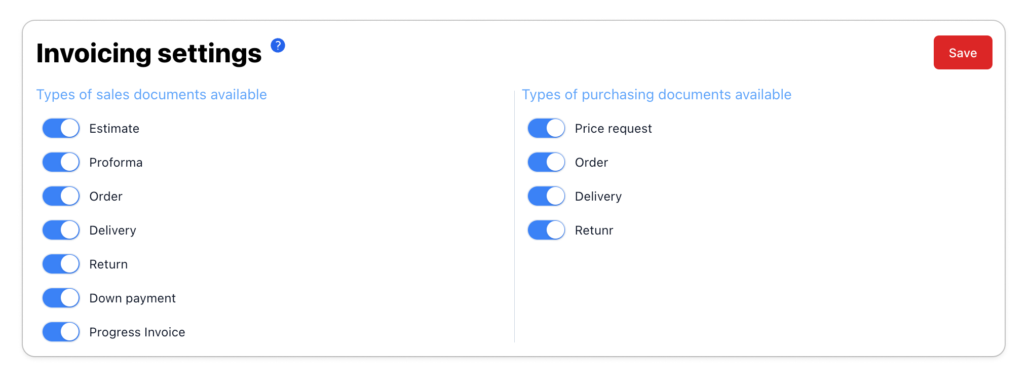
Availability of commercial documents
Gesti’up enables you to generate all types of purchasing and sales documents. (Estimates, Proformas, order forms, delivery forms, return forms, all types of invoices and credit notes for sales, then price requests, supplier order forms, supplier delivery forms, return forms, supplier invoices and credit notes).
However, depending on your activity, you can hide the management of certain types of document to make your interface more visible. To do this, simply activate or hide certain document types.
Customise the validity period of documents
Quotes, Proformas and sales orders have a default validity period of 30 days. This feature allows you to:
- Secure your pricing proposal
- Encourage faster decision-making
- Limit and reserve allocated stocks
- Provide legal protection

Depending on your business, you can customise the default number of days.
From a sales document (quotation, proforma, order form, etc.) you can customise the validity date.
If your document is not accepted or converted into a child document (e.g. from a quote to an invoice) after the validity date, the document automatically changes its status to ‘Expired’.
With expired status, the document :
- Can no longer be submitted for electronic signature
- Be transformed into a child document
- May be modified to update its validity date
Details of how to display numerical values
Customise the default number of decimal places in your Gesti’up account:
- The default unit prices of your items or sales lines, which will be applied to sales, purchase and stock documents.
- Sales quantities, which will be applied to sales, purchase and stock documents.

The decimal point precisions can be modified for only 1 item from its file, in the ‘Preferences’ section or from a sales line applied to a document in ‘Creation’ or ‘Draft editing’ mode.
It is only possible to customise the decimal places on unit prices and quantities. The total of the sale or purchase document and payments will only be based on the legal precision of the decimal point of the currency used.
For example, for the Euro (€), the legal decimal precision is 2 digits after the decimal point.
Configure currencies and conversion rates
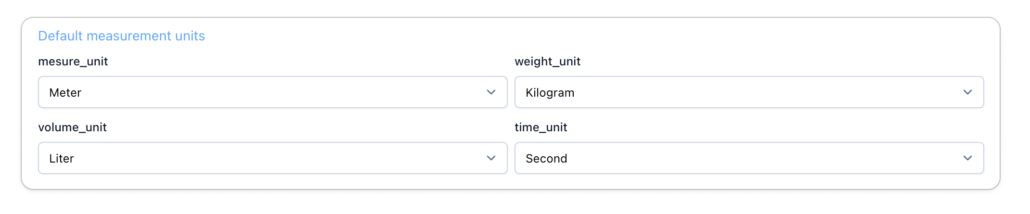
Customise units of measurement
By default, Gesti’up applies the reference units of measurement. However, depending on your activity and the products and services you sell, you can customise the desired units:
- Length unit: This will be included in the specifications of the item sheets and displayed on the sales or purchasing documents depending on the parameters applied to the document templates.
- Weight unit: Will be included in the specifications of the item sheets and displayed on the sales or purchasing documents depending on the parameters applied to the document templates.
- Volume unit: This will be included in the specifications of the item records and displayed on the sales or purchasing documents depending on the parameters applied to the document templates.
- Time unit: This will be used for the time management function and displayed on sales or purchasing documents depending on the settings applied to the document templates.
Configuring your VAT management mode
To make your VAT returns easier, you can configure :
- The VAT declaration system:
- Exempt: There will be no VAT management on your items and sales documents. Your pricing will then be ‘Net’.
- Monthly actual mode
- Three-monthly actual system
- Simplified system
- Basic VAT exemption scheme

Configuring your VAT tax regime
To find out or confirm the VAT regime to which your company is subject, please contact your tax department or your chartered accountant.
- The default VAT management mode :
- VAT on debits: VAT is calculated and declared directly from the sales or purchase journal when the paid or unpaid document is finalised.
- VAT on incoming and outgoing payments: VAT is calculated and declared directly from the sales or purchase journal when the paid or unpaid document is finalised.
- VAT on margin: VAT is calculated on the margin generated and declared directly from the sales or purchase journal when the paid or unpaid document is finalised.
Once you have defined the VAT management mode, you can customise the wording displayed on purchase and sales documents.
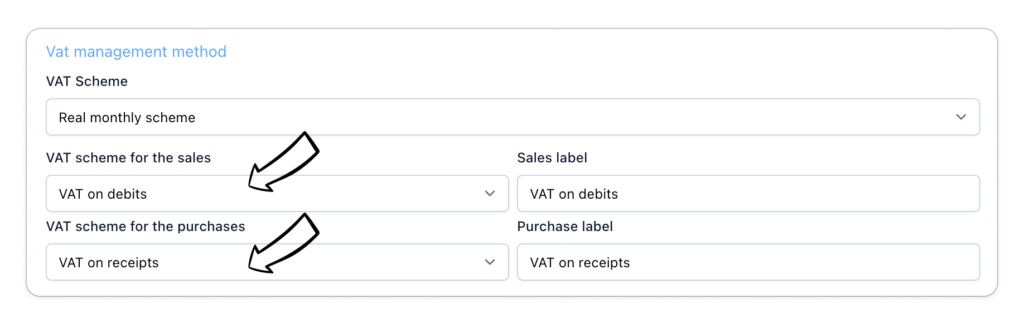
The VAT management mode can be defined by default from the invoicing settings, then from each item record, or from a sales or purchase line.
To find out or confirm your VAT management method, please contact your tax office or accountant.
Below is the documentation on the different VAT management methods:
Configuring VAT management mode for debits
Configure VAT on collection management mode
Configuring margin VAT management mode
Use of double tax
In some countries, businesses have to manage two separate types of VAT, which may be due to :
- National VAT + regional/local VAT (e.g. Canada, USA in some states, some African countries).
- Conventional VAT + a specific tax (e.g. municipal tax in addition to VAT).
- A special system with a VAT surcharge (e.g. certain Latin American countries).
If one of these situations applies to you, you can activate the use of the double tax.
- Create your tax from Settings > Data > VAT rate
- Select the tax to be used as secondary VAT
- Select the calculation method to be used
- On the price of the item before tax (The 2 taxes are calculated on the price of the item before tax)
- On the price after VAT (The second tax is calculated on the price of the item charged with the first tax)
- On the amount of the first VAT (the second tax is calculated on the basis of the amount of the first tax)

If the functionality is enabled by default, it can be disabled directly from the parameters of a sales or purchase document.
Below is the documentation on the use of the double tax:
Teletransmission of E-reports
Depending on your VAT regime, define the frequency and date for sending transaction data and payment data E-reports in accordance with the General Tax Code.
You can choose to send :
- Manually
- Automatically on the desired date (The proposed dates depend on your configured VAT system)
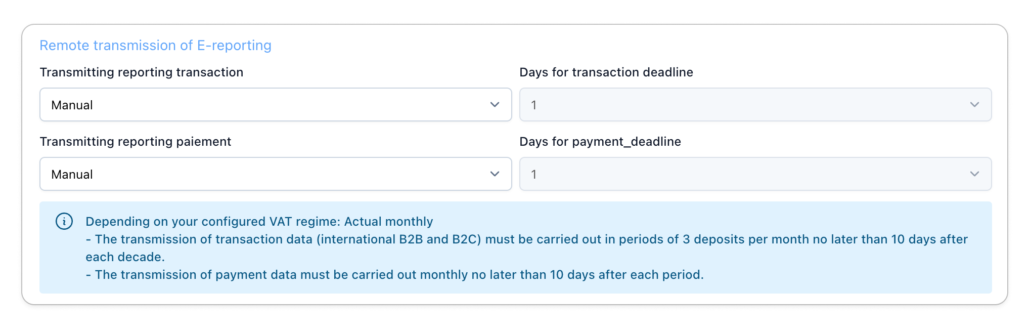
Below is the documentation on how to set up remote transmission of E-reports:
Method of calculating rounding
Gesti’up applies the rounding method recommended by the French Ministry of the Economy:
- If the third figure after the decimal point is equal to or greater than 5, we round up to the nearest cent;
- If the third figure after the decimal point is less than 5, round down to the nearest cent.
Source from the European Commission

